Dossiers d'installation :
IMPORTANT : Lors de l'installation, il y a 2 dossiers d'installation à choisir :
- pour le programme : à installer dans Programmes / Program Files (x86)
- pour les fichiers DATA et les voitures et circuits : là, on peut sélectionner une autre partition (ex : D:\rFactor2)
Installation des mises à jour :
Le téléchargement et l'installation des mises à jour du programme se fait automatiquement, dans l'onglet Update
- lancer le jeu,
Dans la fenêtre principale :
- cliquer sur l'onglet "Update" (en haut)
Dans Update :
- cliquer sur "Verify"
Si une mise à jour existe, il est proposé de la télécharger :
- cliquer sur "Download"
- etc.
Installation des mods et circuits :
Le téléchargement des mods et circuits se fait manuellement
Après téléchargement :
- mettre le fichier téléchargé (rfmod si c'est un mod, ou rfcmp si c'est un circuit) dans le dossier du jeu :
D:\rFactor2\Packages
- lancer le jeu,
Dans la fenêtre principale :
- cliquer sur "Manage Mods" (en bas, à droite)
Dans la fenêtre Mod Manager :
- cliquer sur le bouton d'actualisation (Refresh) si le fichier rfMod n'apparaît pas
- sélectionner la case "Mods" (en haut, à gauche)
- sélectionner le mod à installer (marqué "No" dans la colonne Installed)
- cliquer sur "Install"
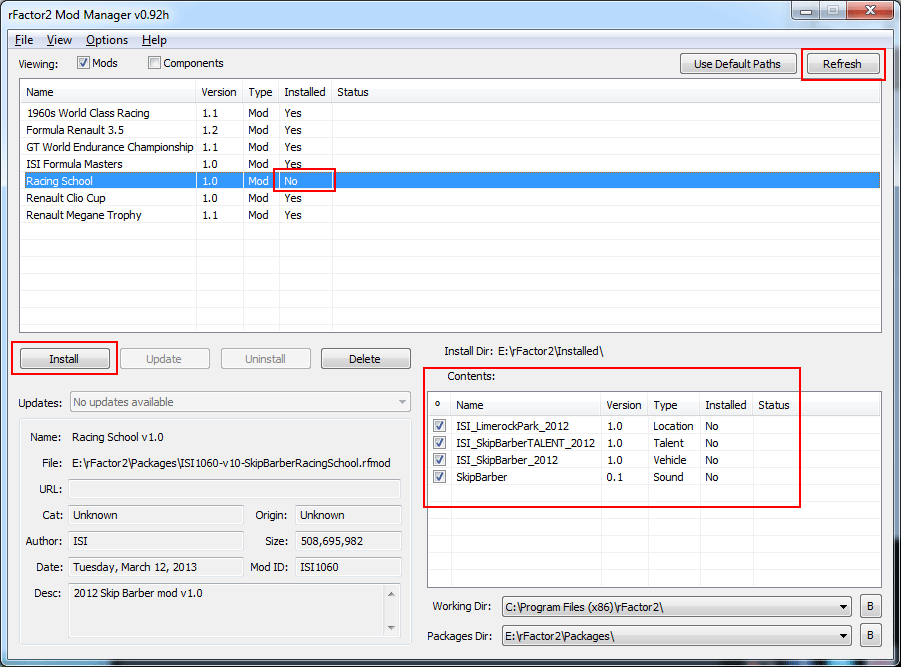
- remarquer la version du mod dans la colonne Version
- remarquer l'emplacement des Mods (Packages Dir) : ici E:\rFactor2\Packages
Pour l'installation des circuits :
Dans la fenêtre Mod Manager :
- cliquer sur le bouton d'actualisation (Refresh) si le fichier cmp n'apparaît pas
- sélectionner la case "Components" (en haut, à gauche)
Comme pour les mods :
- sélectionner le composant (voiture ou circuit) à installer,
- cliquer sur Install
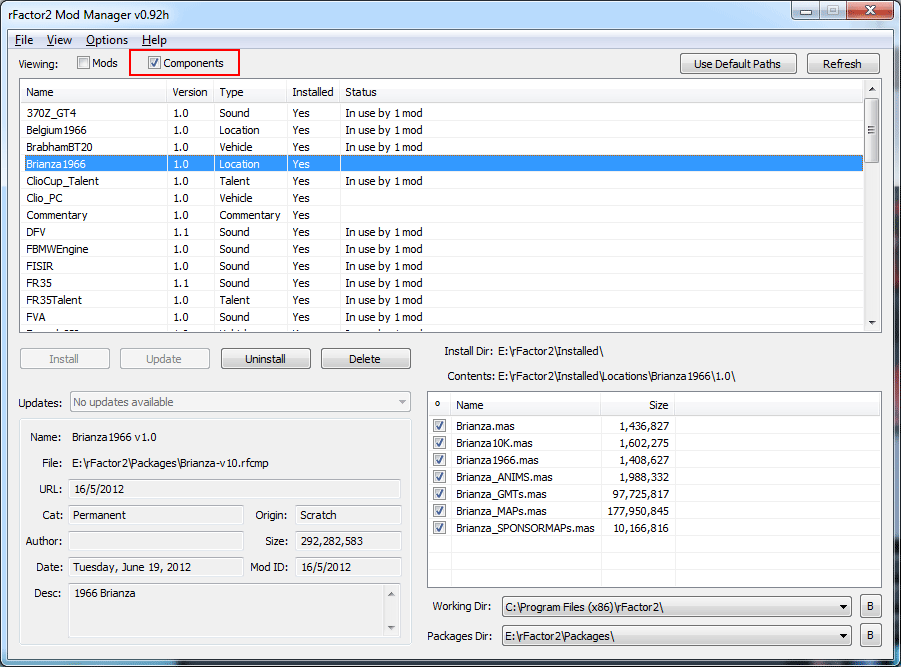
Emplacement des mods et circuits installés :
Les mods sont dans : rFactor2\Installed\Vehicles
Les circuits sont dans : rFactor2\Installed\Locations
Configuration de l'affichage :
- cliquer sur "Configure Sim" (les autres réglages se font à l'intérieur du jeu).
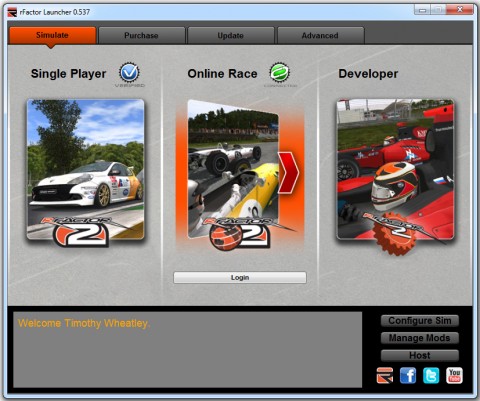
Remarquer :
- la partie "Single Player" (toujours accessible)
- la partie "Online Race" qui nécessite de cliquer sur "Login" et de rentrer son adresse mail et son mot de passe choisis lors de l'achat.
|